
Introduction
Most organizations adopt Power BI Desktop quickly. Power BI Service is where adoption stalls. The web-based platform that governs sharing, access control, scheduled refresh, and enterprise distribution is far more layered than the authoring tool — and misconfigurations here create real problems: stale reports, broken row-level security, runaway Premium capacity costs, and content that never reaches the right audience.
This guide covers Power BI Service end to end: what it is, how its licensing tiers actually work, where the platform creates leverage for enterprise BI teams, and where the common failure points are. If you are evaluating Power BI Application Development for your organization or you are already running a deployment and want to tighten it up, this is the reference you need.
What Power BI Service Actually Is (And Is Not)
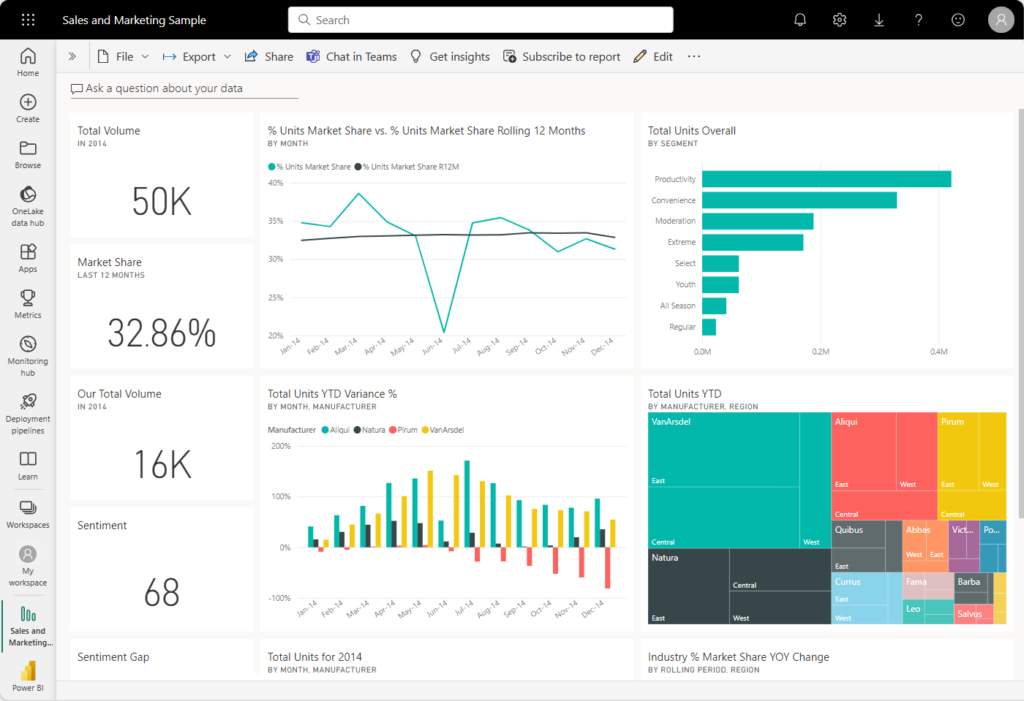
Power BI Service (app.powerbi.com) is the cloud-hosted SaaS layer of the Power BI platform. It is not a report authoring tool. Reports are built in Power BI Desktop and published to the Service, where they are stored, shared, scheduled, and governed.
The core building blocks of the Service:
Workspaces: Containers for organizing dashboards, reports, datasets, and dataflows. The legacy “My Workspace” is for individual use only. Collaborative workspaces (V2) are required for team-based deployment. Every production environment should live in a dedicated workspace, not “My Workspace.”
Datasets (now called Semantic Models): The data layer that reports connect to. A single dataset can power multiple reports, which is the correct pattern for enterprise deployments. Duplicating datasets for each report is a common anti-pattern that creates maintenance overhead.
Dataflows: Power Query logic stored and executed in the cloud, not inside individual .pbix files. Dataflows are the correct place to centralize transformation logic that multiple reports share. If your team is still embedding all transformation logic inside Desktop files, you are building technical debt.
Apps: A packaged, read-only view of workspace content distributed to end users. Apps are how most business users should consume Power BI content. Direct workspace access for viewers is messier and harder to govern.
Deployment Pipelines: Dev/Test/Prod pipeline management inside Power BI Premium. More on this below.
Power BI Licensing: What Each Tier Actually Gets You
Licensing is the most misunderstood part of Power BI deployments. Here is the breakdown:
Power BI Free: Access to My Workspace only. No sharing. No collaboration. Useful for personal exploration and nothing else.
Power BI Pro ($10/user/month): Collaboration-enabled. Users can publish to shared workspaces, share reports, and build apps. Every content creator and every consumer (when content lives in a Pro workspace) needs a Pro license. At moderate scale, per-user costs accumulate fast.
Power BI Premium Per User (PPU) ($20/user/month): Adds Deployment Pipelines, Paginated Reports, advanced AI features, and larger dataset size limits (up to 100 GB per dataset vs. 1 GB on Pro). Still per-user, not capacity-based.
Power BI Premium (P-SKUs, capacity-based): Shared capacity (P1 starts around $4,995/month) that removes per-user licensing for consumers. If you have more than ~250-300 consumers, the math typically favors Premium capacity over per-user licensing. The F-SKUs on Microsoft Fabric are now the preferred path for new Premium implementations.
Embedded (A-SKUs/F-SKUs via Azure): For ISVs or organizations embedding Power BI into applications. Billed through Azure, not M365.
One scenario Prism Analytics encounters regularly: organizations paying for PPU licenses across a large user base when Fabric F-SKU capacity would cost significantly less and unlock more capability. Running a proper TCO analysis before scaling a Power BI deployment is not optional work.
Row-Level Security, Object-Level Security, and Why Both Matter
Row-Level Security (RLS) is the most critical governance layer in Power BI Service, and it is also where the most implementation mistakes happen.
RLS is defined in the dataset (semantic model) and enforced when users view reports connected to it. There are two types:
Static RLS: Roles with hardcoded DAX filter rules. Manageable for small, stable user groups. Does not scale.
Dynamic RLS: Uses the USERNAME() or USERPRINCIPALNAME() DAX function to filter data based on the logged-in user’s email, mapped against a security table in the data model. This is the correct approach for any deployment with more than a handful of distinct access profiles.
What most guides skip: RLS is not enforced in Power BI Desktop when testing as a developer. You must use the “View As Role” feature to validate filters. Skipping this step before publishing has caused more than a few accidental data exposures.
Object-Level Security (OLS): Introduced to hide specific tables or columns from roles entirely (not just filter rows). OLS is configured via Tabular Editor or XMLA endpoints, not through the Power BI Desktop UI. It is underused but important for datasets that contain sensitive columns (e.g., salary data) that should not be visible to all report viewers even if the rows are filtered.
Deployment Pipelines and the Dev/Test/Prod Workflow
Deployment Pipelines are a Premium/PPU-only feature that most mid-size teams should be using but are not.
The pipeline lets you maintain three workspace stages (Development, Test, Production) and promote content between them with tracked changes. Rules can override data source connections per stage, so your Dev workspace hits a dev database and Prod workspace hits the production one automatically.
Without Deployment Pipelines, the typical workaround is manually re-publishing .pbix files from Desktop into the correct workspace, which is error-prone and untraceable. That approach works for a single analyst publishing personal dashboards. It does not work for a BI team maintaining 50+ reports across multiple datasets.
Teams doing Power BI Application Development at scale often implement Deployment Pipelines alongside version control via Power BI REST APIs and Azure DevOps, creating a proper CI/CD pipeline for BI assets. This is not a niche approach — it is the expected standard for enterprise deployments.
Scheduled Refresh, Gateways, and Where Pipelines Break
Scheduled refresh in Power BI Service is straightforward until it is not. The main complication: on-premises or private network data sources require an On-Premises Data Gateway installed on a machine with network access to those sources.
The gateway acts as a bridge between the Power BI cloud service and your internal data. It is not optional if your data lives in SQL Server on-prem, SharePoint on-premises, or behind a corporate firewall.
Common failure points:
- Gateway machine goes offline or reboots without restart: Refresh jobs fail silently until someone notices a stale report.
- Credentials expire: Data source credentials stored in the gateway must be manually refreshed when passwords change. No automated rotation.
- Refresh throttling on Pro: Pro workspaces support up to 8 refreshes per day per dataset. For near-real-time reporting, this forces either DirectQuery (which has its own performance implications) or a move to Premium.
- Incremental refresh misconfiguration: Incremental refresh can dramatically reduce refresh times on large datasets, but it requires specific Power Query parameter naming conventions (RangeStart and RangeEnd) and fails quietly if parameters are named incorrectly.
For teams running critical business reporting on Power BI Service, gateway uptime and refresh reliability are operational concerns, not just technical setup tasks.
Conclusion
Power BI Service is not just a hosting layer for Desktop reports. It is a full enterprise distribution, governance, and operations platform, and it rewards teams that treat it that way. The difference between a Power BI deployment that scales and one that becomes unmaintainable usually comes down to three things: proper dataset and workspace architecture, correctly implemented row-level security, and a disciplined publishing workflow.
For organizations already running large Power BI environments — or planning to build one — getting these foundations right from the start is significantly cheaper than retrofitting governance after the fact.
Need a Power BI or Microsoft Fabric solution built right the first time? Prism Analytics delivers production-grade Power BI Application Development for enterprise teams, from data model design to deployment pipeline setup. Let’s talk about what your environment needs.